Table of Contents
Introduction: Shopify Ecommerce Platform Identification Methods
In the vast ecosystem of ecommerce, understanding which platform a competitor, partner, or target market uses is more than mere curiosity—it’s a critical business intelligence strategy. Among the myriad of ecommerce solutions, Shopify stands as a dominant force, powering over 4.4 million live websites and capturing a significant market share. The ability to accurately identify a Shopify store provides actionable insights into a business’s technical stack, scalability, potential customizations, and even security postures.
For digital marketers, SEO specialists, developers, and business analysts, Shopify ecommerce platform identification is a foundational skill. It informs competitive analysis, partnership opportunities, trend forecasting, and technical due diligence. Whether you’re assessing a potential acquisition, researching for affiliate marketing, or performing a security audit, knowing how to spot a Shopify store quickly and reliably is invaluable.
This comprehensive guide will serve as your definitive resource, moving beyond basic checks to explore sophisticated, multi-method approaches for identifying Shopify websites. We’ll delve into the technical signatures, visual cues, investigative tools, and expert methodologies that separate amateur guesses from professional-grade identification.
The Fundamentals of Ecommerce Platform Detection
Before zeroing in on Shopify specifically, it’s essential to understand the broader context of ecommerce platform identification. Every Content Management System (CMS) and ecommerce platform leaves a unique digital fingerprint—a combination of file structures, code patterns, database calls, and network requests.
The “Digital Fingerprint” Concept
Each platform, whether it’s Shopify, WooCommerce, Magento, BigCommerce, or a custom-built solution, implements certain architectural decisions that become visible to those who know where to look. These fingerprints exist in:
- Source Code: Comments, class names, script paths, and meta tags.
- File & Directory Structures: URLs for admin panels, asset folders, and API endpoints.
- Cookies and Local Storage: Platform-specific tokens and keys.
- Network Traffic: Calls to unique JavaScript files, fonts, or third-party services tied to the platform.
- Response Headers: Server information like x-powered-by or set-cookie directives.
Shopify’s architecture is a hosted Software-as-a-Service (SaaS) model. This centralizes many elements, meaning all Shopify stores pull core functionalities from Shopify’s own servers, creating consistent and often easily recognizable patterns. This is a key differentiator from self-hosted platforms like WooCommerce, where the digital fingerprint can vary wildly based on the host and developer.
Manual Methods for Identifying a Shopify Store
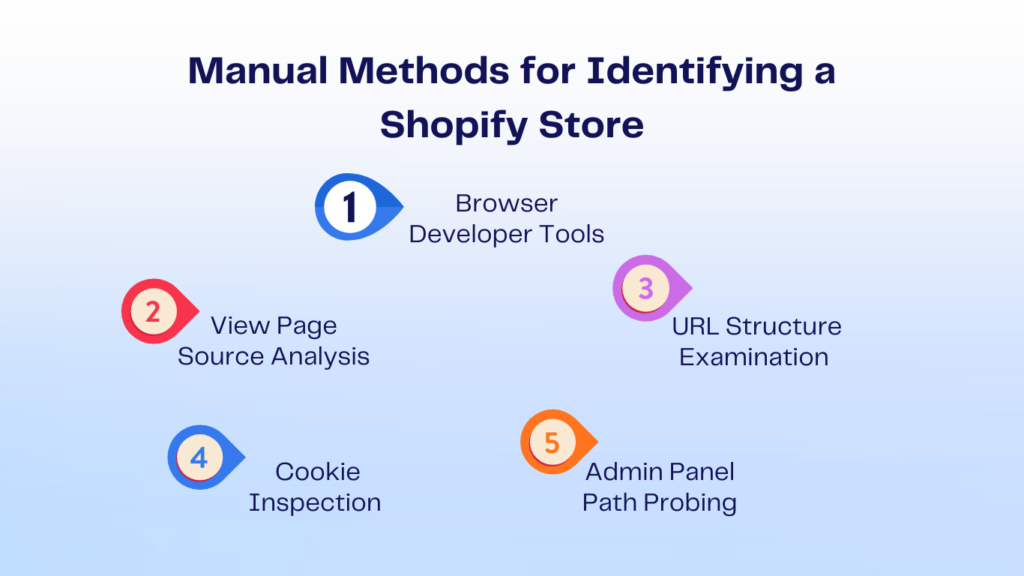
The most immediate and accessible identification techniques require no special tools—just a browser and a keen eye. Let’s explore the step-by-step manual checks.
1. View Page Source Analysis
This is your first port of call. Right-click on any page of the store and select “View Page Source” (or Ctrl+U / Cmd+U).
Key Shopify Markers in the Source Code:
- cdn.shopify.com: The most definitive giveaway. Look for links to stylesheets, JavaScript files, or product images hosted on this domain.
html
<link rel=”stylesheet” href=”https://cdn.shopify.com/…/styles.css”>
<script src=”https://cdn.shopify.com/…/global.js”></script>
- Shopify-Specific Meta Tags and Comments: Themes often include identifying comments.
html
<!– /sections/header.liquid –>
<!– [Shopify] –>
- Liquid Object References: Shopify’s templating language, Liquid, leaves traces even in the rendered HTML.
html
data-section-id=”header” data-section-type=”header-section”
{{ product.url }}
- shopify_click or shopify_pay in Scripts: References to Shopify’s proprietary payment or tracking scripts.
2. Browser Developer Tools (The Network Tab)
Open Developer Tools (F12), navigate to the Network tab, and refresh the page. Filter requests by “JS” or “Doc” and look for calls to:
- cdn.shopify.com
- shopifycdn.com
- Domain names containing .myshopify.com (often used for storefront previews or certain assets).
- sdks.shopify.com (for Shopify APIs like buy-button).
3. URL Structure Examination
Shopify enforces specific URL patterns:
- Product Pages: Typically follow /products/{product-handle}.
- Collection Pages: Use /collections/{collection-handle}.
- Cart Page: The cart is almost always at /cart.
- Checkout: Shopify’s secure checkout is hosted on a shopify.com subdomain. Add an item to the cart and proceed to checkout. If the URL changes to something like https://checkout.shopify.com/… or {store}.myshopify.com/checkout, it’s conclusively Shopify.
4. Cookie Inspection
In Developer Tools, go to the Application tab, then Cookies under the store’s domain. Look for cookies with names starting with:
- _shopify_ (e.g., _shopify_y, _shopify_s)
- _cart_
- _secure_session_id
- customer_ prefixed cookies for logged-in users.
5. Admin Panel Path Probing
A common, though not foolproof, check is to append /admin to the store’s root URL (e.g., www.examplestore.com/admin). A genuine Shopify store will redirect you to a Shopify-admin login page. Note: This method should be used ethically and not for unauthorized access attempts.
Automated Tools & Online Services for Shopify Identification
For bulk analysis or faster verification, several specialized tools can automate the detection process.
BuiltWith & Wappalyzer
These are browser extensions and web services that analyze a site’s technology stack in real-time.
- How they work: They scan the page load for the technical signatures mentioned above.
- What they show: They will explicitly list “Shopify” as the ecommerce platform, often alongside the specific theme (e.g., “Dawn,” “Debut,” or a premium theme like “Impulse”) and installed apps (e.g., “Klaviyo,” “Loox Reviews”).
WhatCMS.org & Similar Detectors
Websites like WhatCMS.org are dedicated to CMS detection. Simply enter the URL, and they will query the site and return their analysis, often with a confidence percentage.
Security Headers & DNS Record Lookups
- Security Headers: Some stores have headers like x-shopid or x-shopify-stage.
- DNS Records: A CNAME record pointing to shops.myshopify.com is a clear, infrastructure-level confirmation that the domain is hosted on Shopify.
Shopify’s Own “Powered by Shopify” Badge
While many stores remove it for branding, some smaller or newer stores may still display the “Powered by Shopify” text in their footer. It’s a quick visual cue, but its absence means nothing.
Advanced Techniques & Edge Cases
What about stores that have heavily customized their code or use headless implementations? Advanced techniques are required.
1. Headless Shopify (Shopify Plus / Hydrogen)
Headless commerce decouples the front-end presentation layer from Shopify’s back-end engine. Stores might be built with Next.js, Gatsby, or Hydrogen (Shopify’s React-based framework) and pull data via the Storefront API.
- Identification Challenge: The front end won’t have cdn.shopify.com assets or Liquid code.
- Identification Solution: Check the network tab for GraphQL API calls to {store-domain}/api/2023-07/graphql.json (the Shopify Storefront API endpoint). Examine the structure of the JSON responses, which will contain Shopify’s data models.
2. Subdomain vs. Custom Domain
- storename.myshopify.com: This is Shopify’s default subdomain. If a store is accessible via this, it’s definitive proof.
- Custom Domain (www.storename.com): This is what most established brands use. The identification methods above apply here.
3. Reverse Image Search on Theme Elements
If you recognize a unique UI element (a specific product grid animation, a distinctive cart drawer), you can take a screenshot and use a reverse image search or compare it against popular Shopify theme demos. This can point you to the theme, which confirms the platform.
The Professional’s Toolkit: Actionable Use Cases
Identifying the platform isn’t an end in itself. Here’s how professionals leverage this knowledge.
- Competitive Analysis & Benchmarking: Knowing a competitor uses Shopify allows you to:
- Research the apps they use (via tool scans) to understand their marketing, fulfillment, or customer service stack.
- Analyze their theme to gauge their investment in design and UX.
- Understand their scalability limits and potential technical advantages.
- Affiliate & Partnership Outreach: Tailor your pitch. “I see you’re on Shopify, our app integrates seamlessly via the Shopify App Store…” demonstrates relevance and reduces friction.
- Developer & Agency Prospecting: Identify businesses that might be outgrowing their current theme or need specialized Shopify Plus development.
- Security Audits & Vulnerability Assessment: Check if a store (especially a partner/vendor) is using outdated or vulnerable Shopify apps or themes.
- Market Research & Trend Analysis: Track the adoption rate of Shopify vs. other platforms in a specific niche (e.g., DTC brands, fashion, electronics).
Common Mistakes and How to Avoid Them
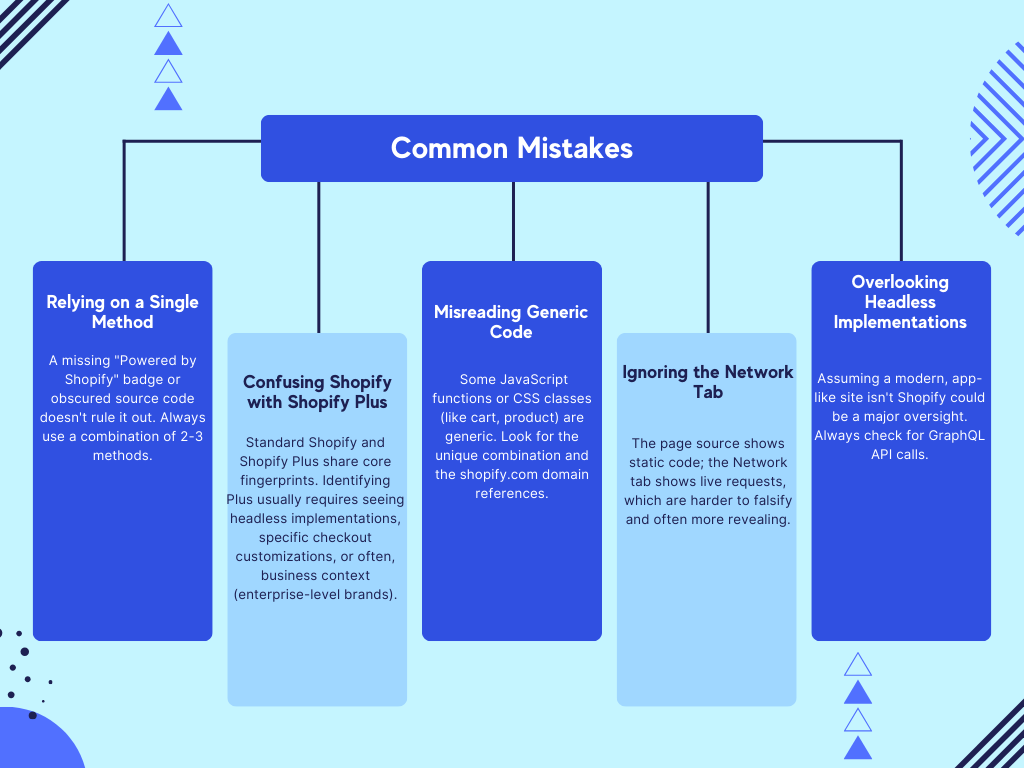
- Relying on a Single Method: A missing “Powered by Shopify” badge or obscured source code doesn’t rule it out. Always use a combination of 2-3 methods.
- Confusing Shopify with Shopify Plus: Standard Shopify and Shopify Plus share core fingerprints. Identifying Plus usually requires seeing headless implementations, specific checkout customizations, or often, business context (enterprise-level brands).
- Misreading Generic Code: Some JavaScript functions or CSS classes (like cart, product) are generic. Look for the unique combination and the shopify.com domain references.
- Ignoring the Network Tab: The page source shows static code; the Network tab shows live requests, which are harder to falsify and often more revealing.
- Overlooking Headless Implementations: Assuming a modern, app-like site isn’t Shopify could be a major oversight. Always check for GraphQL API calls.
Expert Tips and Best Practices
- Create a Systematic Checklist: For consistent results, develop your own step-by-step protocol (e.g., 1. Check source for cdn.shopify.com, 2. Use Wappalyzer extension, 3. Inspect /cart and checkout flow).
- Bookmark Critical Resources: Keep a list of popular Shopify theme demo pages and a reference of Shopify’s own CDN domains for quick comparison.
- Respect Privacy and Terms of Service: Use this knowledge ethically. Do not attempt to probe /admin or other sensitive areas with malicious intent. Your goal is identification, not intrusion.
- Stay Updated: Platforms evolve. Shopify regularly updates its APIs and infrastructure. The presence of a buy-button SDK or a new subdomain pattern might become a future indicator.
- Cross-Reference with Company Data: Use platforms like LinkedIn or Crunchbase. A company listing “Shopify Developer” roles or mentioning “Shopify Plus” in their tech stack provides external confirmation.
Frequently Asked Questions (FAQ)
Q1: Is it 100% possible to hide that a store is built on Shopify?
A: It is extremely difficult to hide all fingerprints completely. While you can obscure source code, use a headless front end, and customize checkout, underlying API calls, DNS records, and certain network requests to Shopify’s infrastructure are nearly impossible to conceal from a determined, technically skilled investigator.
Q2: Can I identify which specific Shopify theme a store is using?
A: Often, yes. Tools like Wappalyzer or BuiltWith frequently detect the theme name. You can also search the source code for the theme name (e.g., “Dawn,” “Brooklyn,” “Prestige”) within comment tags, CSS file paths, or data-theme attributes.
Q3: How can I tell if a store is using Shopify Plus?
A: There’s no single public-facing “flag” for Shopify Plus. Indicators include: a fully customized checkout on the store’s own domain (not checkout.shopify.com), headless front-end implementations, access to advanced APIs like Gift Card or Multipass, and typically, the store’s scale and brand recognition. Official confirmation usually comes from the business itself.
Q4: What’s the fastest method to identify a Shopify store?
A: The fastest reliable method is a two-step combo: 1) Install the Wappalyzer browser extension for an instant readout, and 2) quickly check the page source (Ctrl+F for “shopify”) for confirmation.
Q5: Are there legal issues with identifying a website’s ecommerce platform?
A: No. The methods described here involve analyzing publicly available information—the same data that any user’s browser fetches to display the website. It is considered public technical data, similar to looking at the make of a car. Avoid any activity that constitutes unauthorized access or harassment.
Q6: Why does my tool sometimes show both “Shopify” and “React” for the same store?
A: This is a strong indicator of a headless Shopify implementation. The store uses Shopify for its backend commerce engine (inventory, checkout, orders) but uses a React-based framework (like Next.js or Shopify’s own Hydrogen) to build the custom front-end storefront that customers interact with.
Q7: Can I find out what apps a Shopify store has installed?
A: To a limited extent. Tools like BuiltWith can detect many popular, publicly-loaded apps (e.g., email marketing, reviews, live chat). However, backend apps or private apps will not be visible. You can also look in the page source for script URLs or CSS links containing app names.
Q8: How accurate are free online detection tools compared to manual checks?
A: They are highly accurate for standard Shopify stores (95%+). However, manual checks by an expert are still the “gold standard,” especially for detecting headless setups, customizations, or when automated tools return unclear results.
Q9: Does identifying a Shopify store help with SEO analysis?
A: Absolutely. It tells you the underlying technical constraints and opportunities. You can research common Shopify SEO plugins, understand its native handling of sitemaps, robots.txt, URL structure, and page speed optimization techniques specific to the platform.
Q10: What are the main differences I’d see when identifying Shopify vs. BigCommerce or WooCommerce?
A:
- Shopify: cdn.shopify.com, Liquid references, /admin redirect, specific cookie patterns.
- BigCommerce: Scripts from cdn.bigcommerce.com, Stencil framework clues, /login.php for admin.
- WooCommerce: Self-hosted, WordPress core files (/wp-content/, /wp-admin/), PHP sessions, highly variable structure based on theme and host.
Conclusion:
Mastering Shopify ecommerce platform identification equips you with a lens to deconstruct the digital commerce landscape. It transforms from a guessing game into a systematic process of technical discovery. The key is to adopt a layered approach: start with quick automated tools, verify with manual source and network inspection, and apply advanced techniques for sophisticated, headless storefronts.
The future of this practice will be shaped by the continued rise of headless and composable commerce. Identifying platforms will increasingly mean spotting API patterns and decoupled architectures rather than just static code snippets. Tools will evolve to parse GraphQL endpoints and JavaScript framework signatures more intelligently.
For now, the methods outlined in this guide provide a robust, professional framework. By applying them, you gain a competitive edge in market intelligence, strategic planning, and technical partnership—all starting with the simple, powerful question: “Is this a Shopify store?” You now have the definitive guide to answer it with confidence.
You may also benefit from our in-depth guide on scaling ecommerce businesses worldwide
(internal dofollow link example:https://rankifycontent.com/international-ecommerce-scaling).